


KI-Bildgenerator
Erleben Sie die Zukunft der Kreativität mit unserem leistungsstarken KI-Bildgenerator, der Ihre Ideen in atemberaubende Bilder verwandelt. Ganz gleich, ob Sie mit einer detaillierten Textvorlage beginnen oder ein vorhandenes Bild hochladen – unsere hochmoderne Technologie erweckt Ihre Visionen in Sekundenschnelle zum Leben. Der KI-Bildgenerator ist ideal für Künstler, Marketingfachleute, Designer, Pädagogen und alle, die unbegrenzte visuelle Ausdrucksmöglichkeiten erkunden möchten.

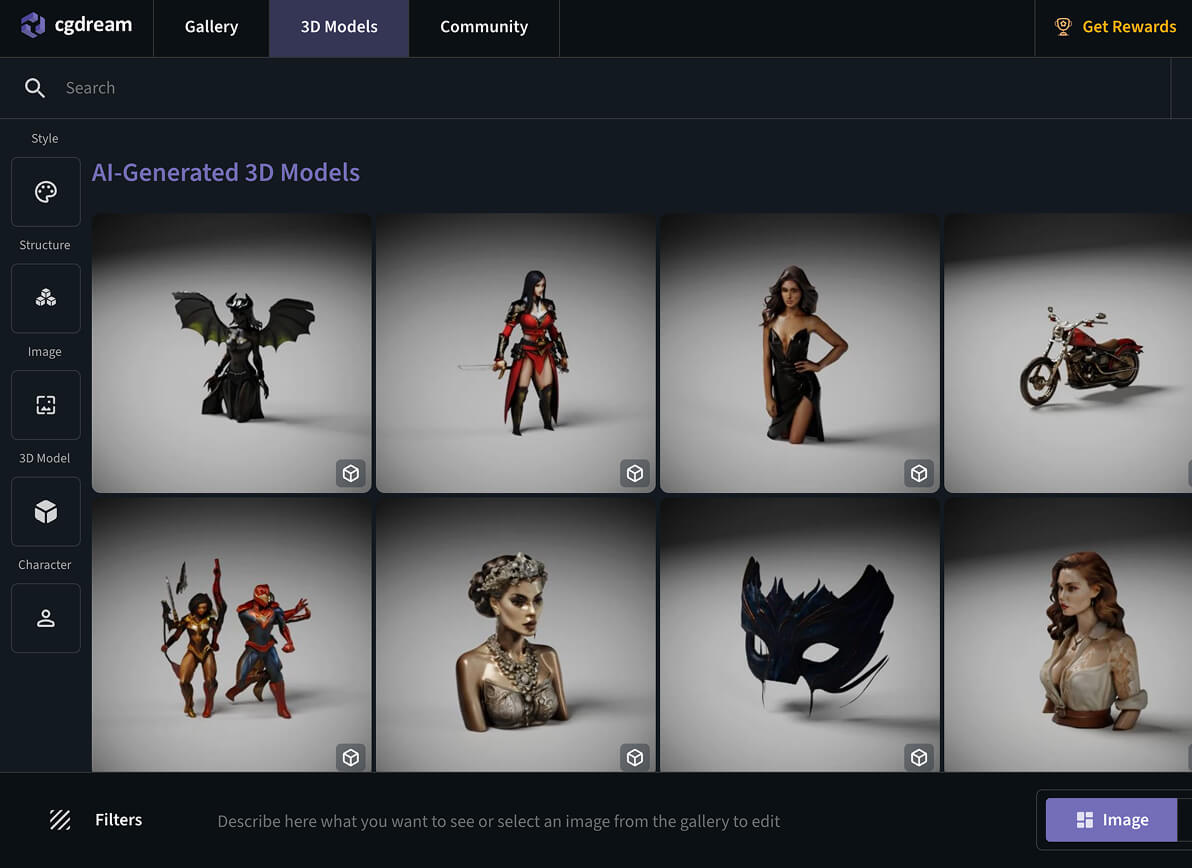

3D Model Generator from Photo
Upload a photo to help create your 3D model. This works best when you already have an object you wish to copy. CGDream can copy the image and create a 3D model, or image, depending on your needs. You can choose between the two. Then rotate, view, and download. Just upload an image with good lighting and defined shapes.
The Rodin software can copy an image in 90 seconds, depending on its quality, colors, shading, and shapes. Just provide a good quality and a clear JPG or PNG image with a simple background for better results.
How Image-to-3D Works
CGDream analyzes your image to understand shape, structure, shading, and geometry, then turns it into a 3D model using AI. You can control creativity, mesh type, polygon count, materials, quality, and export format — while the AI handles the heavy lifting.
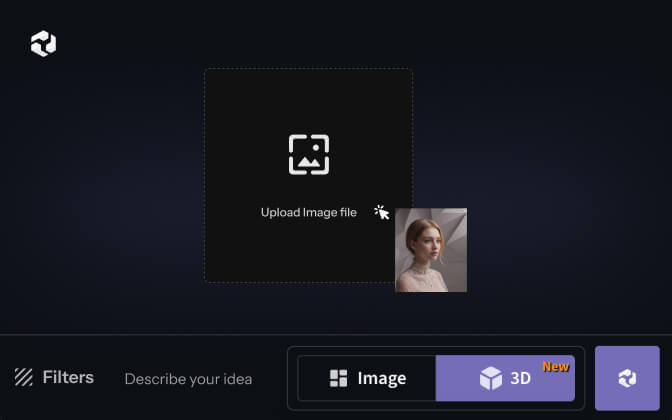
01
Upload your image
In the left sidebar, click the button to upload your image.
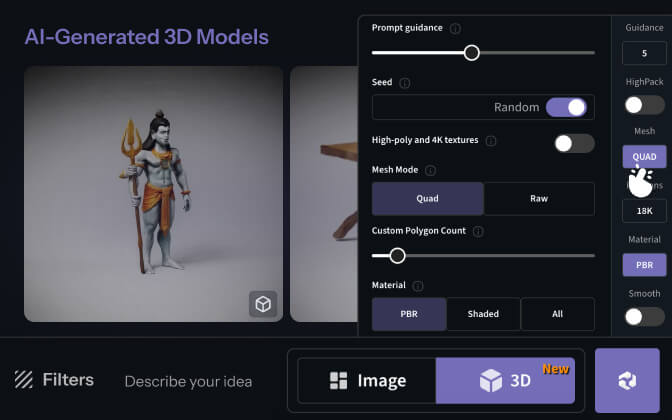
02
Choose your settings
On the right sidebar, choose settings like the mesh type, material, file format, and etc.
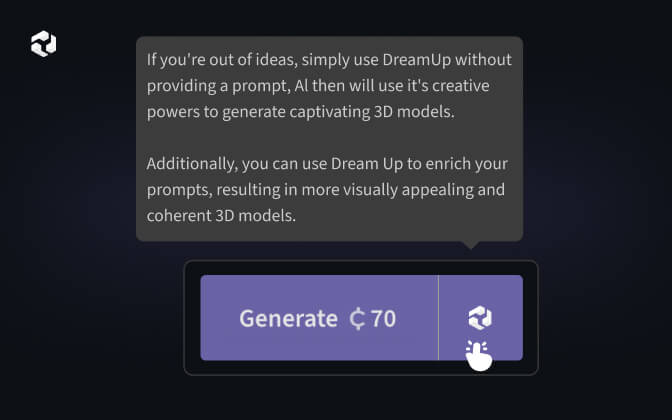
03
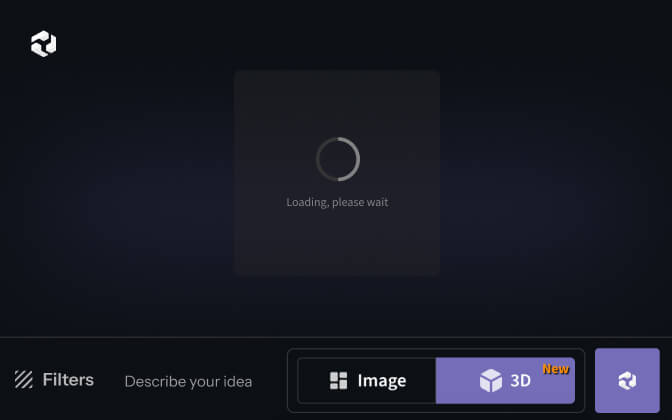
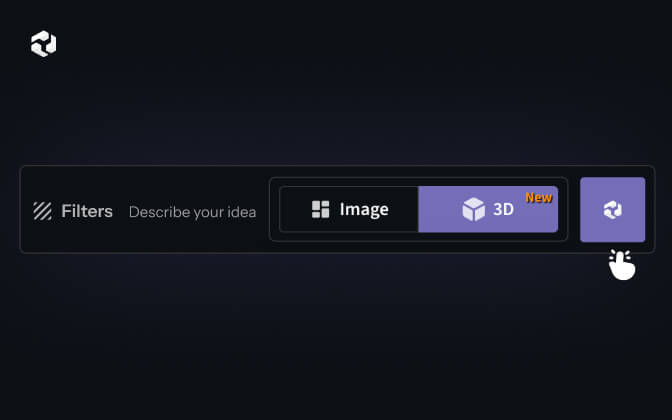
Generate the model
Press Generate for model creation. If you’re out of ideas, use the “Dream-up” option.
04
Wait for processing
Wait about 90 seconds while our software creates your result.
05
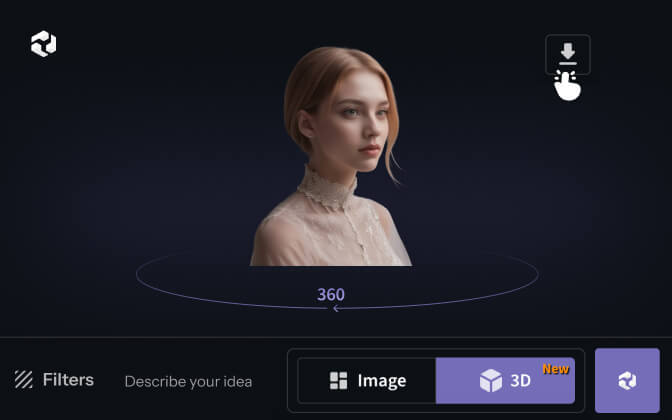
Preview and download
After getting your model, view it and download it in your selected file format.
06
Refine if needed
If you’re not pleased with your result, adjust the settings and get a better one.
Customize your 3D output
.png)
The tool uses our advanced AI software to analyze your image in detail. It examines curves, lines, structure, shading, and depth to understand the full form of the object before generating the 3D model.
Prompt Guidance allows you to control the creativity of the result. Higher values produce more detailed, defined, and high-contrast models, while lower values result in more chaotic, experimental, and creative outcomes. The Seed setting lets you generate different variations of the same model. By changing the seed number, you can explore multiple results while keeping the same overall input.
With Mesh Mode, you can choose the type of mesh that best fits your workflow. Quad Mode generates quad-based meshes suitable for clean topology and further editing, while Raw Mode creates triangle-based meshes that are faster and simpler. The Custom Polygon Count option gives you control over the model’s complexity. Higher polygon counts add more detail but increase file size, while lower counts keep the model lightweight and efficient.
The Material settings help you choose how the surface of your model looks. It has the PBR setting for more realistic lighting and materials, the Shaded is for simple colors, and All to have a mix of both.
You can set which Format to export your image that fits your software or workflow. We have a wide range that is compatible with different tools and uses. You can also choose your Quality preference in the settings. Higher quality results are much more detailed but take longer than 90 seconds to generate while lower quality is quick and is very good for experimentation.
Even if you are a complete beginner, you can still reap the benefits from CGDream and play around with it. Our AI will do most of the work for you so you can just sit back and relax.
3D Model Generator from Text
If you do not have a picture of the object you want, you can just write what you want CGDream to create. The AI can understand your description and build a 3D model just from your text. You can use the setting according to your needs.
For example, you can type something like “A mouse that looks like a cat and has rabbit ears”, or “A fantasy sword with a gold hilt and a glowing blade” etc. More details to get a better result. Still, even short sentences work because the AI can imagine it and fill in the blanks.
How Text-to-3D Works
CGDream analyzes your text to understand shape, structure, and style, then generates a 3D model using AI. You can fine-tune creativity, mesh type, materials, quality, and export format — or let the AI handle everything for you.
01
Write your description
Enter your text description in the lower text box and add up to five filters if desired.
02
Set creativity level
Choose the prompt guidance level to make the model more creative or more controlled.
03
Choose model settings
In the right sidebar, choose settings like the mesh type, material, and file format.
04
Generate the model
Press Generate and wait about 90 seconds or slightly more, depending on quality and details.
05
Download your model
After getting your model, view it and download it in your selected file format.
06
Refine if needed
Not pleased? Simply readjust the setting and get a different result.
Turn words into 3D Model

The tool interprets your written input and automatically handles key aspects such as size, form, structure, and overall style. You can fine-tune the outcome through various settings, including prompt guidance and quality options. Prompt Guidance determines how creative the model will be: higher values result in more detailed, sharper, and more contrasted outputs, while lower values allow for more experimental and unpredictable results.
The Seed setting enables you to create multiple variations of the same model—changing the seed number produces different versions while keeping the core concept intact. With Mesh Mode, you can select the mesh type you prefer. Quad Mode generates quad-based meshes, whereas Raw Mode creates triangle-based meshes. Raw Mode is faster and more straightforward.
Using the Custom Polygon Count option, you can define how many polygons your model will have.
A higher polygon count adds more detail but increases file size, while fewer polygons reduce detail and keep files lighter.
Material settings allow you to control the surface appearance of the model. You can choose PBR for realistic materials and lighting, Shaded for simple color surfaces, or All to combine both approaches.
Export formats can also be selected in the settings to ensure compatibility with your preferred software or workflow. A wide variety of formats is available for different tools and use cases. Additionally, you can choose your desired output quality. High-quality generations provide significantly more detail but take over 90 seconds to process, while lower quality options are faster and ideal for testing and experimentation.
The AI manages everything—from geometry and structure to colors—so you don’t need to worry about modeling techniques. CGDream takes care of the entire process for you.

Was Sie mit unserem KI-Bildgenerator tun können
Unsere Plattform verbindet nahtlos Text-zu-Bild- und Bild-zu-Bild-Technologien und bietet so eine umfassende Suite kreativer Tools. Das bedeutet, dass Sie entweder mit einer leeren Leinwand beginnen und nur Ihre Worte als Vorlage für den Prozess verwenden können, oder ein Referenzfoto hochladen und dieses als Inspiration für die Transformation nutzen können. Die Plattform passt sich Ihrem Kenntnisstand an, egal ob Sie als Anfänger mit Konzepten experimentieren oder als Profi hochauflösende Bilder benötigen. Dank Echtzeit-Generierung, intuitiven Steuerelementen und erweiterten Anpassungsfunktionen gelangen Sie schnell und einfach vom Konzept zur Umsetzung.
- Text-zu-Bild-Erstellung: Geben Sie einfach eine Beschreibung ein – von einem einzelnen Wort bis hin zu einem detaillierten Absatz – und lassen Sie die KI aus Ihrer Fantasie atemberaubende Bilder generieren.
- Bild-zu-Bild-Transformation: Laden Sie Ihr eigenes Bild hoch und steuern Sie dessen Transformation mit benutzerdefinierten Textvorgaben. Ändern Sie Farben, Stile oder ganze Szenen, während wichtige visuelle Elemente erhalten bleiben.
- Stilfilter und LoRA-Verbesserungen: Wenden Sie einzigartige visuelle Stile an, darunter fotorealistische, cartoonartige, abstrakte oder impressionistische Looks. Verwenden Sie LoRA-Stile für detaillierte Akzente und künstlerische Finesse.
- KI-Tools für präzise Bearbeitungen: Nutzen Sie Funktionen wie Inpainting, Upscaling, Prompt-Verbesserung und „Stil aus Bild kopieren” für noch mehr Verfeinerung und Anpassung.
- Es sind kostenlose und Premium-Optionen verfügbar. Nutzen Sie die Grundfunktionen kostenlos oder upgraden Sie für eine schnellere Generierung, höhere Auflösung, kommerzielle Rechte und Kontrolle über private Inhalte.
KI-generierte Bilder


Why Choose CGDream?
CGDream offers freedom and ease of use, which makes it the top choice for anyone looking to create 3D models

No skills are required
You do not need to have any prior experience or knowledge of 3D modeling to use our software.

Fast processing time
Most models are ready in around 90 seconds. This helps you experiment with many different ideas.

High quality results
The models come out clean, structured, and detailed and are ready to use in many different programs.

Language-friendly
You can use simple text or images, and the AI understands and delivers results instantly.

Create with DreamUp
DreamUp can help you create models even when you don’t have a clear idea in mind or need inspiration.

Image & text support
This option makes CGDream versatile and provides ease of use to all kinds of users.

Different formats
You can choose the file type that fits your software.

3D printer friendly
Enable 3D printing optimization to generate models optimized for 3D printing.

Plans for each need
Plans are built to save time for professionals, businesses, and students.
Check Popular Use Cases
Frequently Asked Questions
Was ist ein KI-Bildgenerator?

Wie funktioniert die Text-zu-Bild-Generierung?
Welche Art von Bildern kann ich erstellen?
Kann ich die erstellten Bilder für kommerzielle Zwecke verwenden?
Wie kann ich die Ergebnisse verbessern?
Ist ein KI-Bildgenerator kostenlos nutzbar?
Kann ich meine Bilder löschen?
Kann ich hochauflösende Bilder generieren?

Make AI Realize Your Dreams


